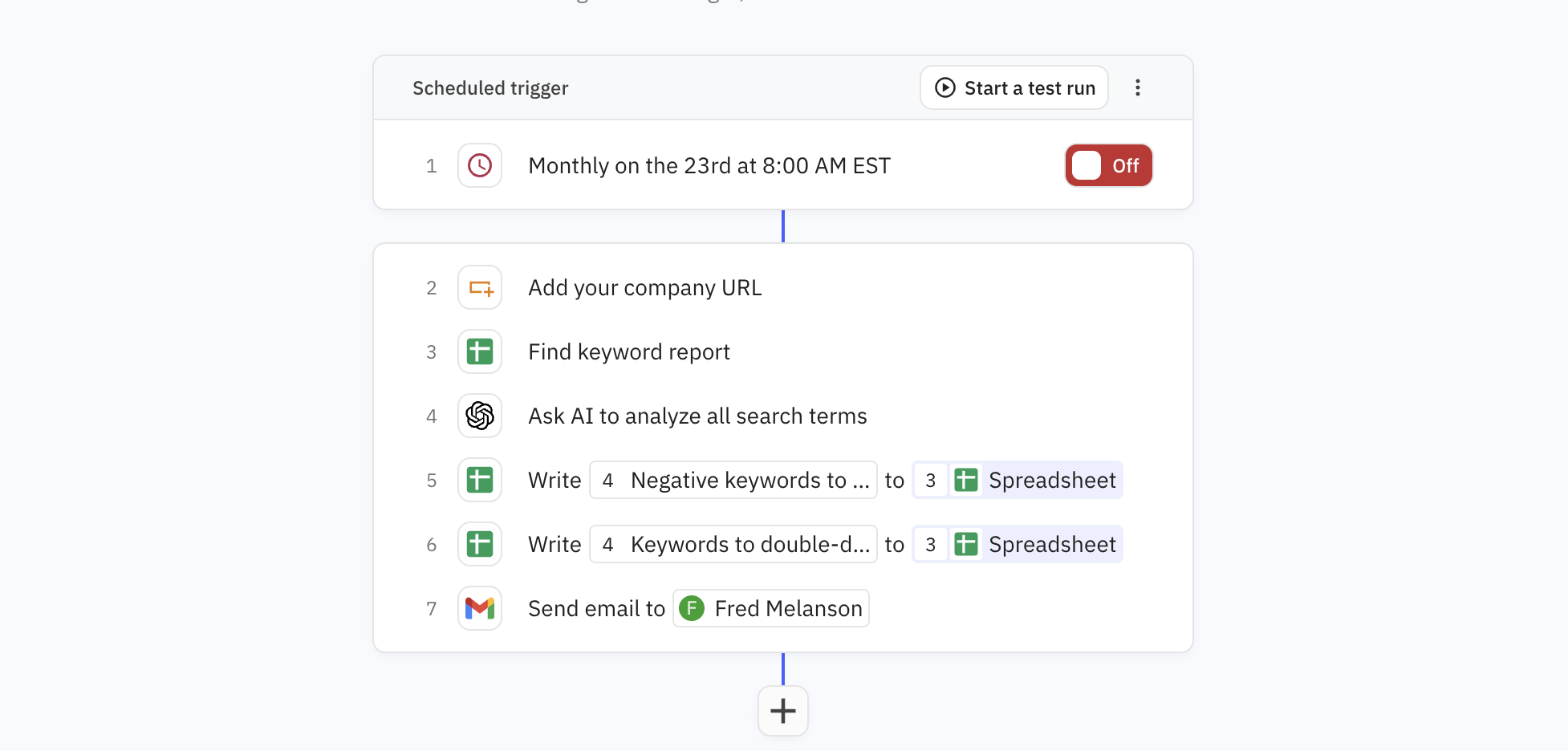
Looks through every single search term that your Google Ads campaigns are displaying for and finds which ones to set to “negative keywords” to reduce ad spend on bad-fit traffic. Recommends terms to increase spending (strong ROI but no budget).
Connecting marketing platforms like Customer.io or Braze
Cross-referencing campaign data with website analytics (GA4) to make sure that “negative keywords” aren’t actually driving conversions (rare occurrence).
Steps and instructions
Notion-Style Callout
💡 Need something more complex and customized to your flow & tools?
Let's talk (15 min).
Step 1: Create the search terms report in Google Ads
Access Reports Section
Log into your Google Ads account
Click on Reports in the left navigation menu
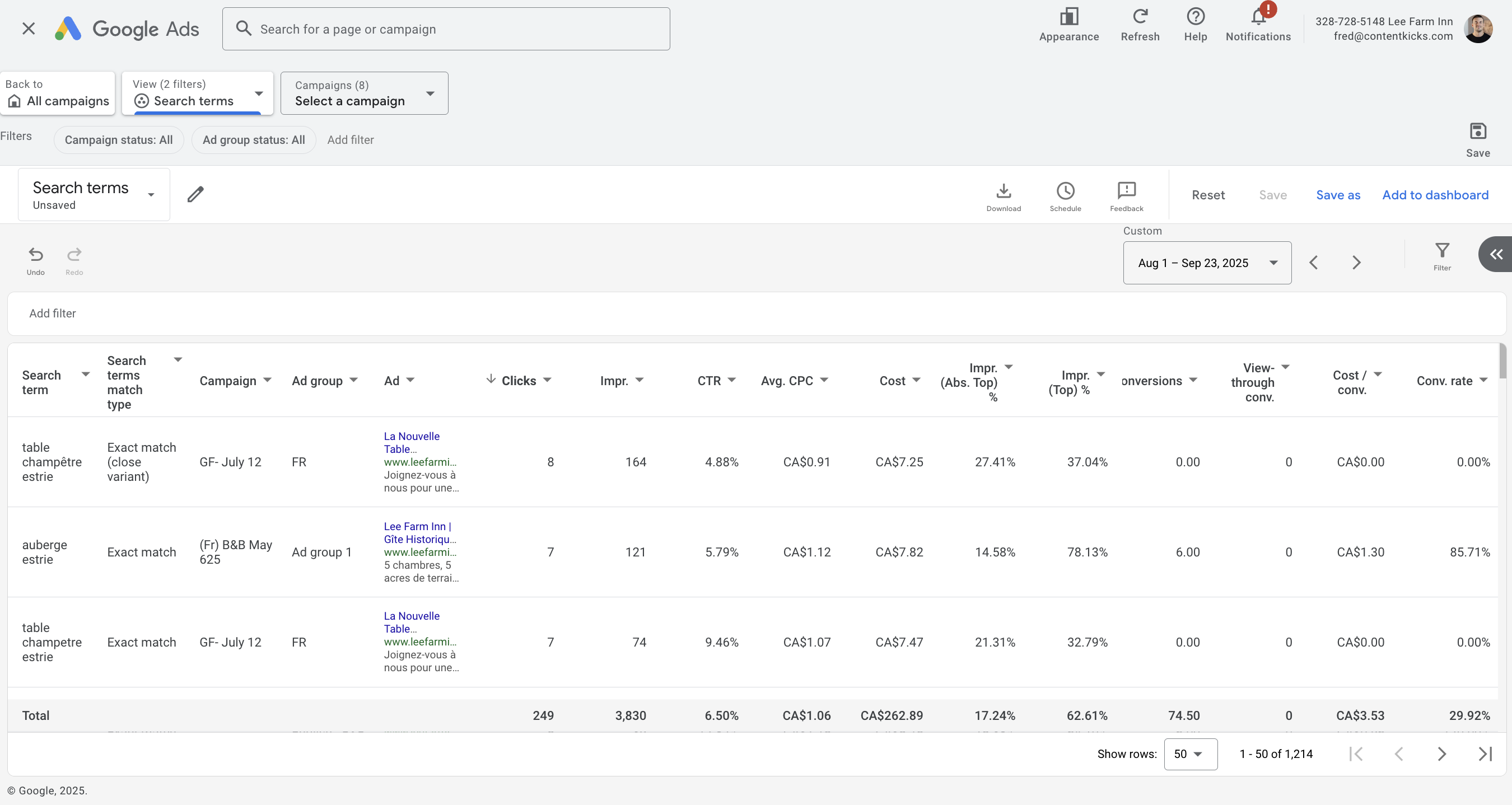
Go to Template Gallery > Search terms
Configure Report Columns & Rows
Add these rows:
Search term (what users have queried)
Search termmatch type (see if some keywords aren’t set up correctly)
Campaign (which campaign was served)
Campaign state (enabled/paused status)
Ad group (which ad group was served)
Ad (which ad was served)
Add these columns:
Clicks (traffic volume)
Impressions (reach)
Impressions (Abs. Top) %
Impressions (Top) %
CTR (click-through rate)
Avg CPC (cost per click)
Cost (total spend)
Conversions (conversion count)
Conv rate (conversion rate)
View-through conversions
Cost per conversion
Apply Filters
Campaign status: Enabled (to see active campaigns)
Ad group status: Enabled, Paused
Date range: Last 30-90 days (sufficient data for analysis)
Step 4: Schedule Export
Click the Schedule button at the top
Choose Google Sheets as the destination
Set frequency to Monthly (matches your cleaner agent schedule)
Name the sheet: "Keyword Performance - [Your Company Name]"
Grant access to your automation tools
Step 5: Export Format
File type: Google Sheets (for easy API access)
Include: All filtered data
Sort by: Cost (descending) to prioritize high-spend keywords
Step 2: Recreate the agent in your Relay.app workspace
Here are screenshots of every step and how we’ve set them up ⤵️
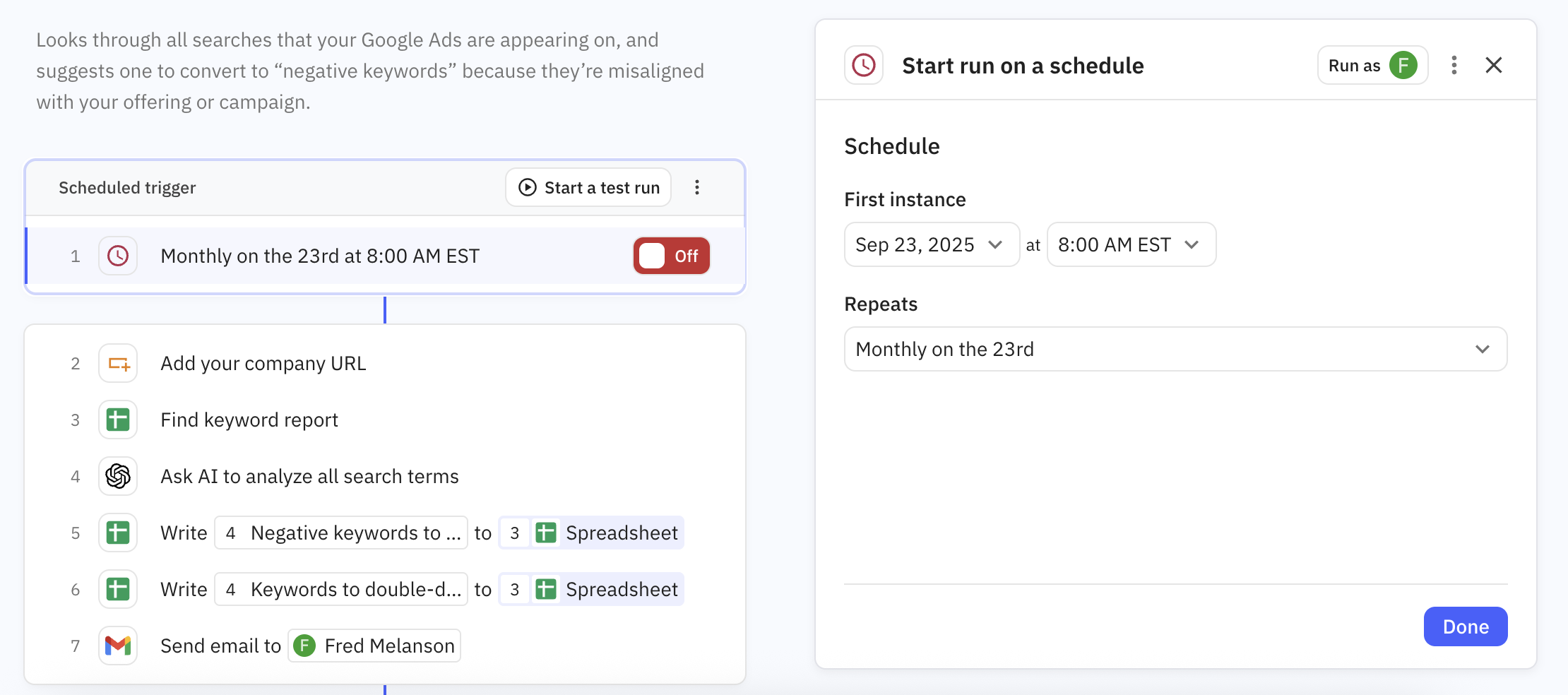
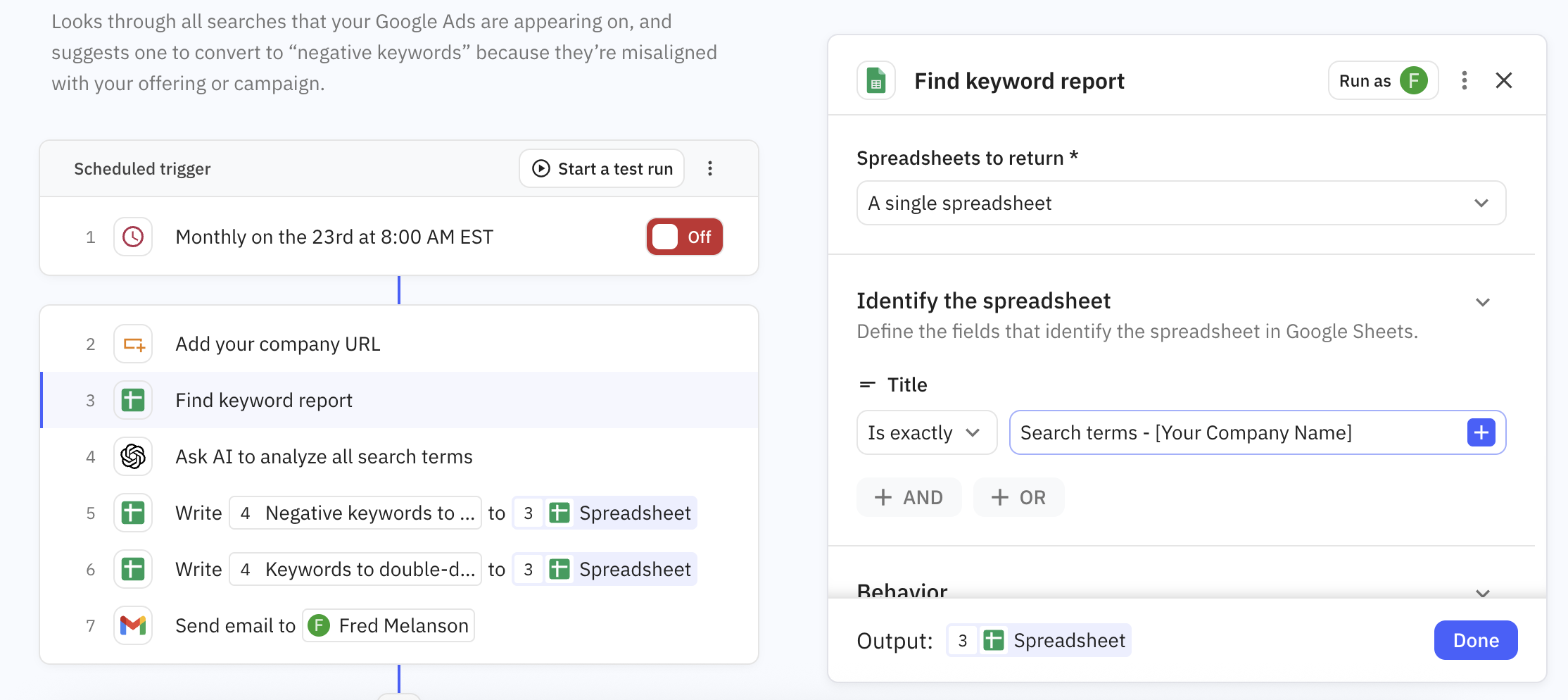
Monthly trigger
What it does: Starts the workflow monthly
Note: Make sure the trigger date matches the Google Ad report schedule date (ex: day of report schedule, or day after)
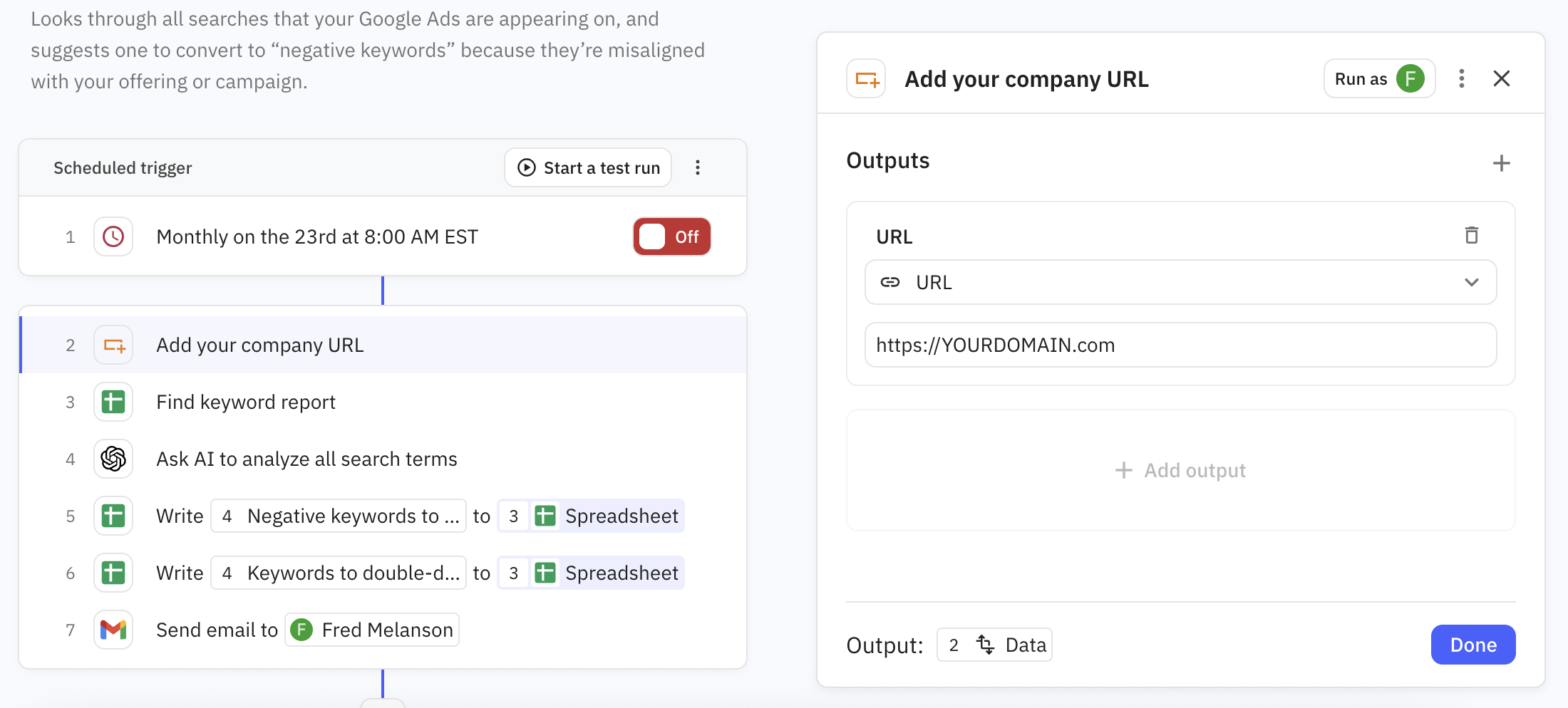
Add company URL
What it does: Sets a constant to feed to the AI later.
Find keyword report
What it does: Finds the report produced by your Google Ads schedule
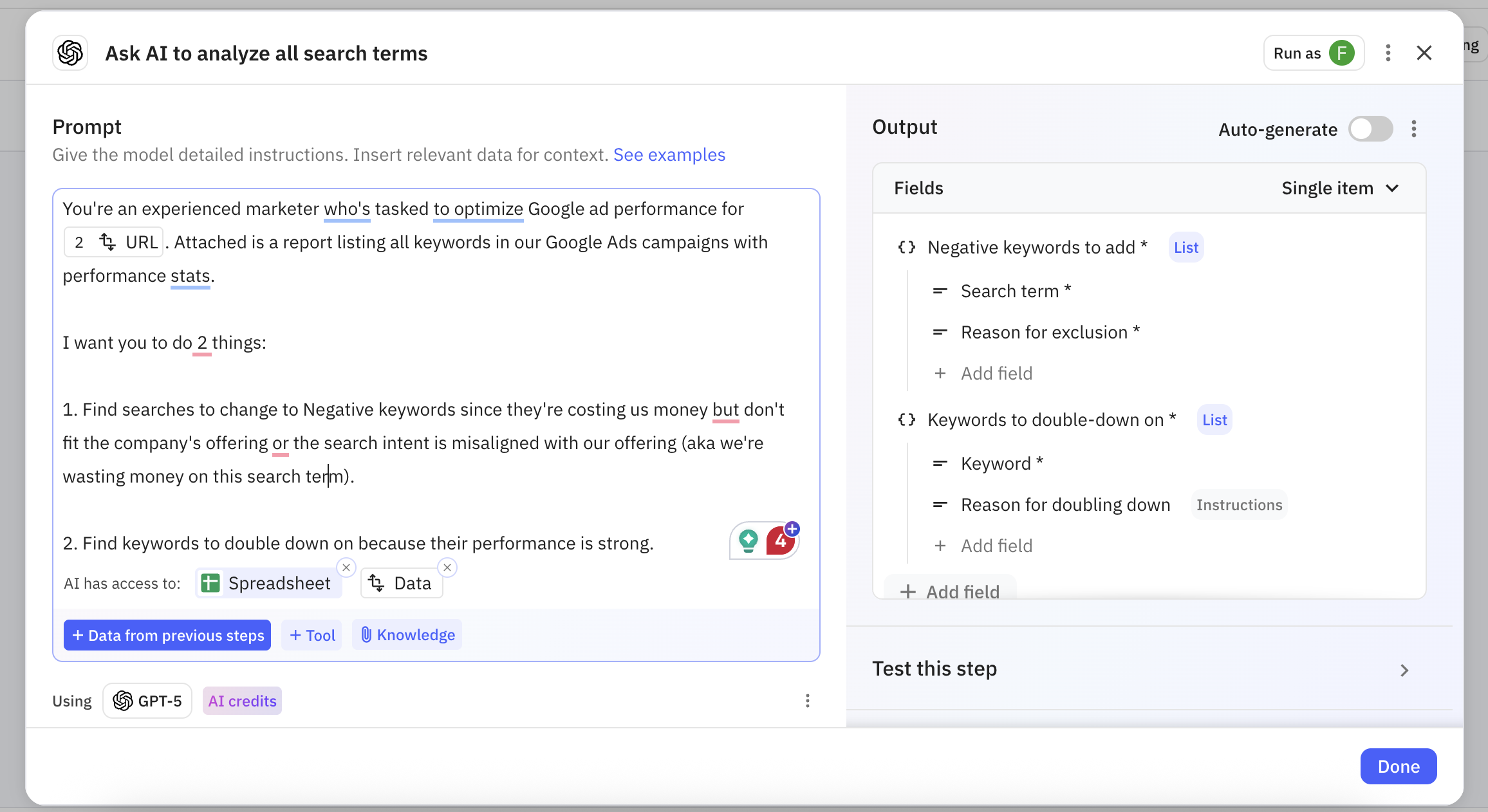
Ask AI to analyze all search terms
What it does: Scans your report and finds searches to remove and searches to invest more in.
💡 Prompt:
You're an experienced marketer who's tasked to optimize Google ad performance for $0. Attached is a report listing all keywords in our Google Ads campaigns with performance stats.
I want you to do 2 things:
1. Find searches to change to Negative keywords since they're costing us money but don't fit the company's offering or the search intent is misaligned with our offering (aka we're wasting money on this search term).
2. Find keywords to double down on because their performance is strong.
Note: To call the Constant in your prompt instead of having “$0”, open the Relay assistant and paste ⤵️
Replace "$0" with a placeholder that dynamically calls the Constant at step 2.
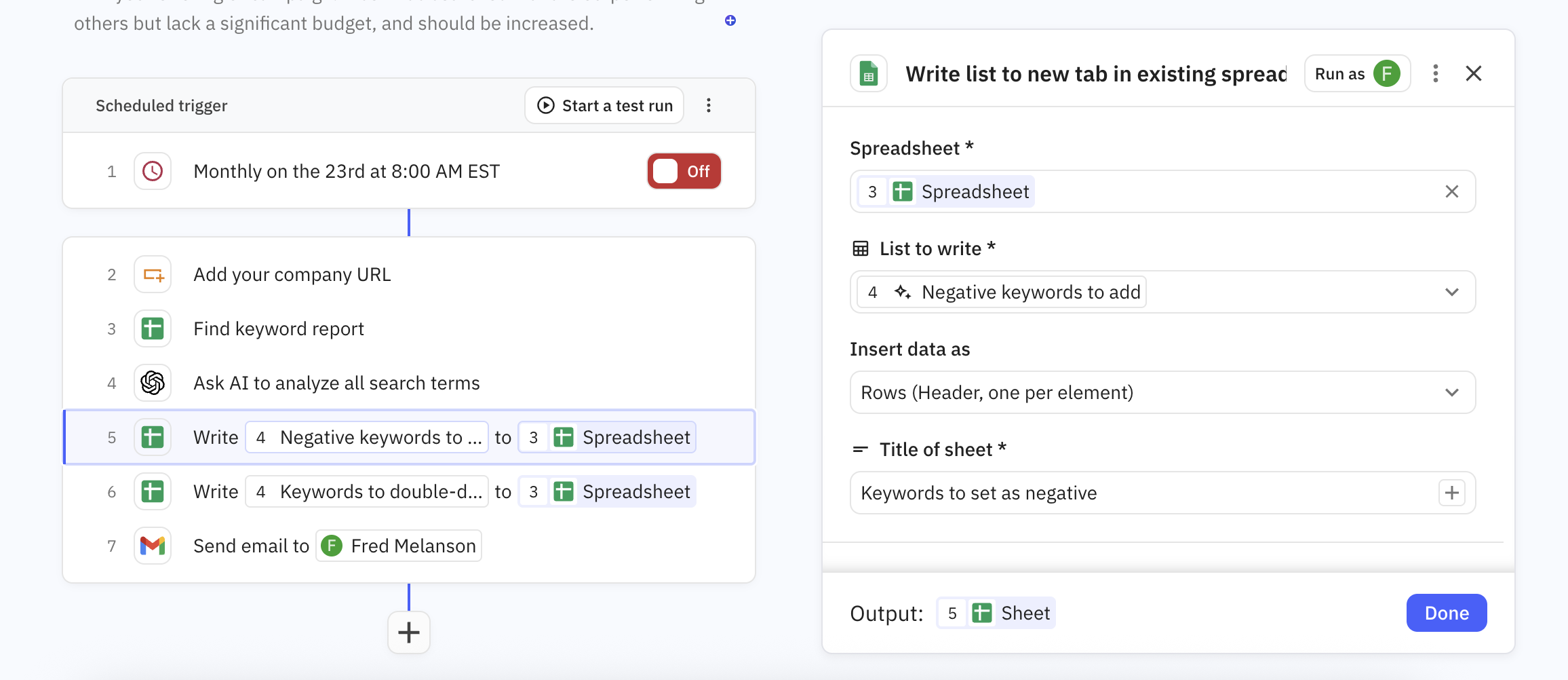
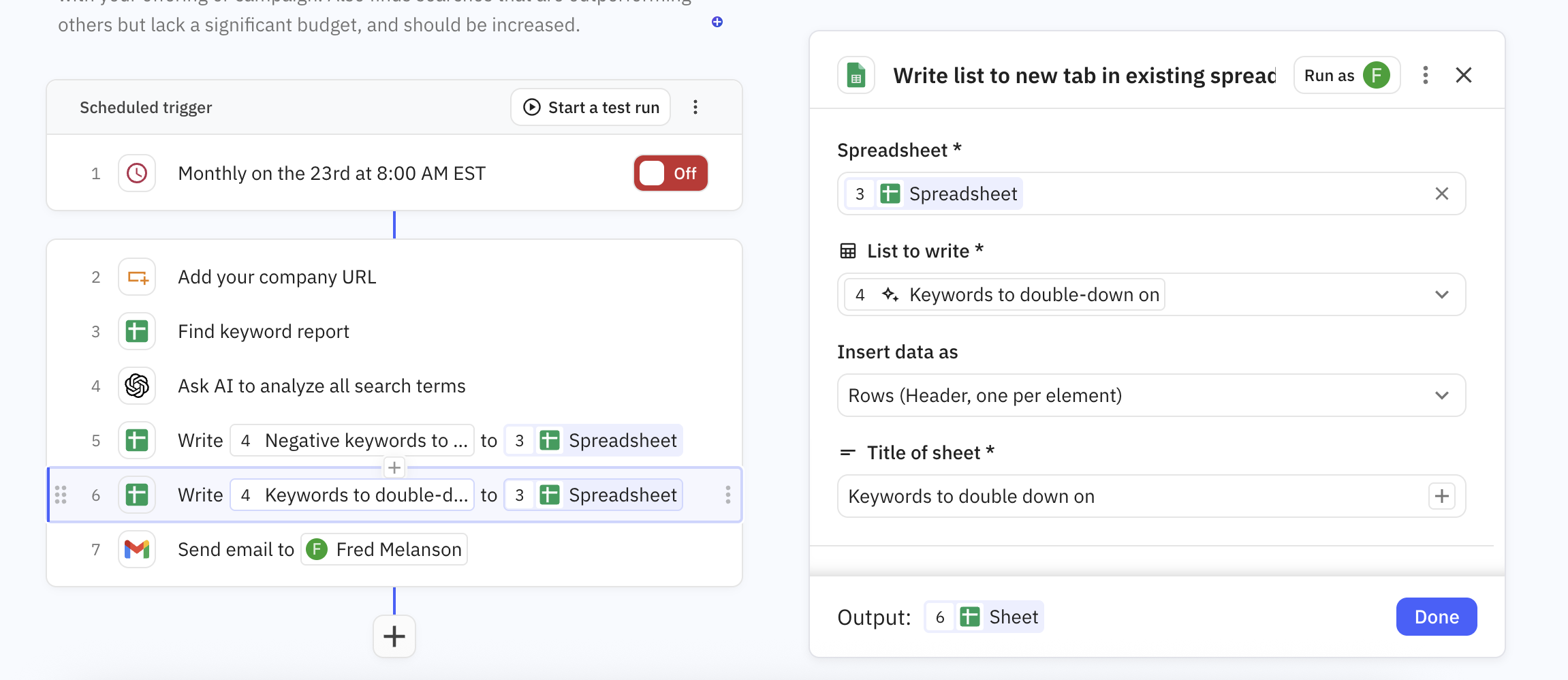
Write the AI output to your Google Sheet
What it does: Adds both findings as new tabs in your report.
Send the report via email to stakeholders
What it does: Sends the summarized findings and a link to the report via email.