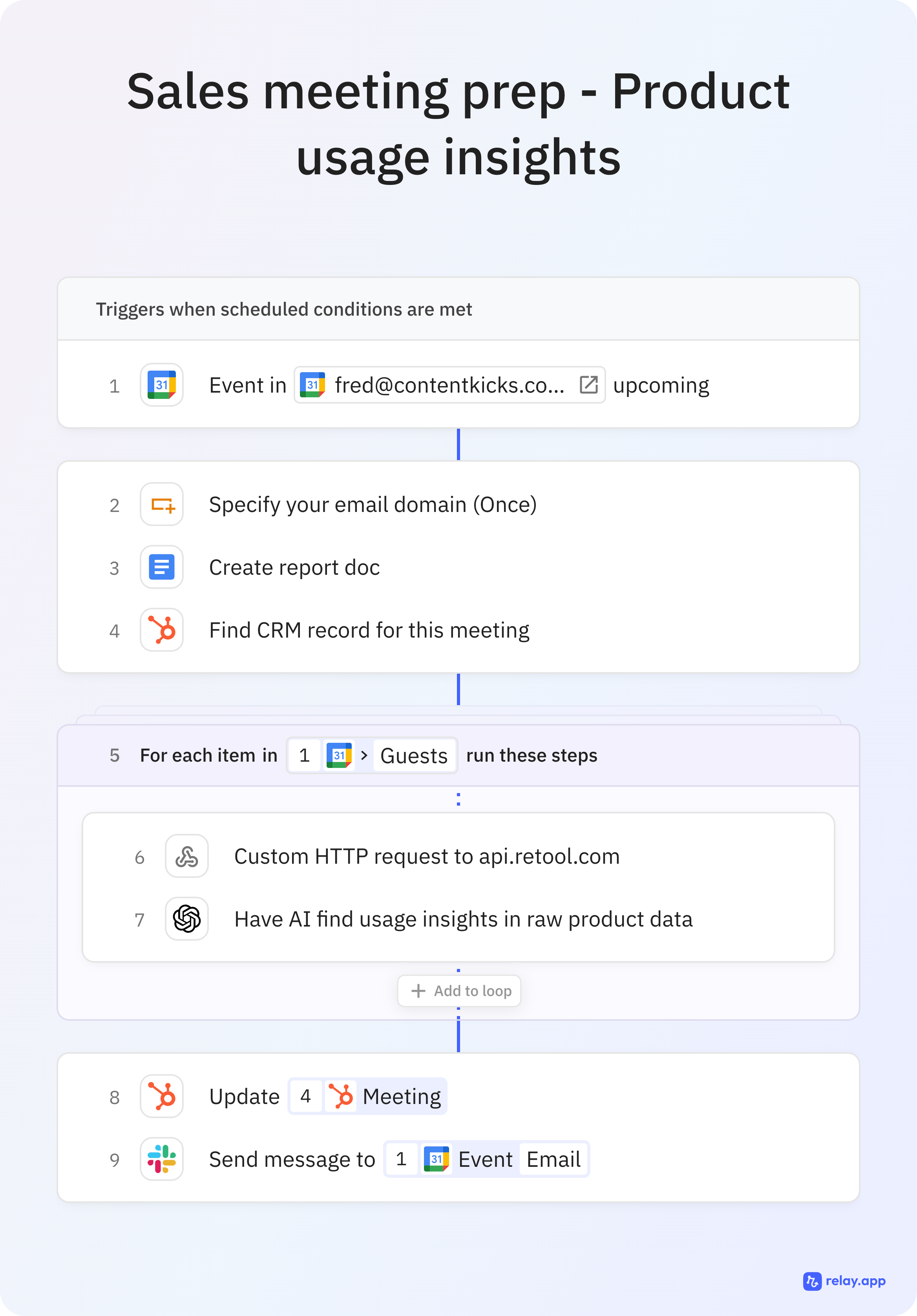
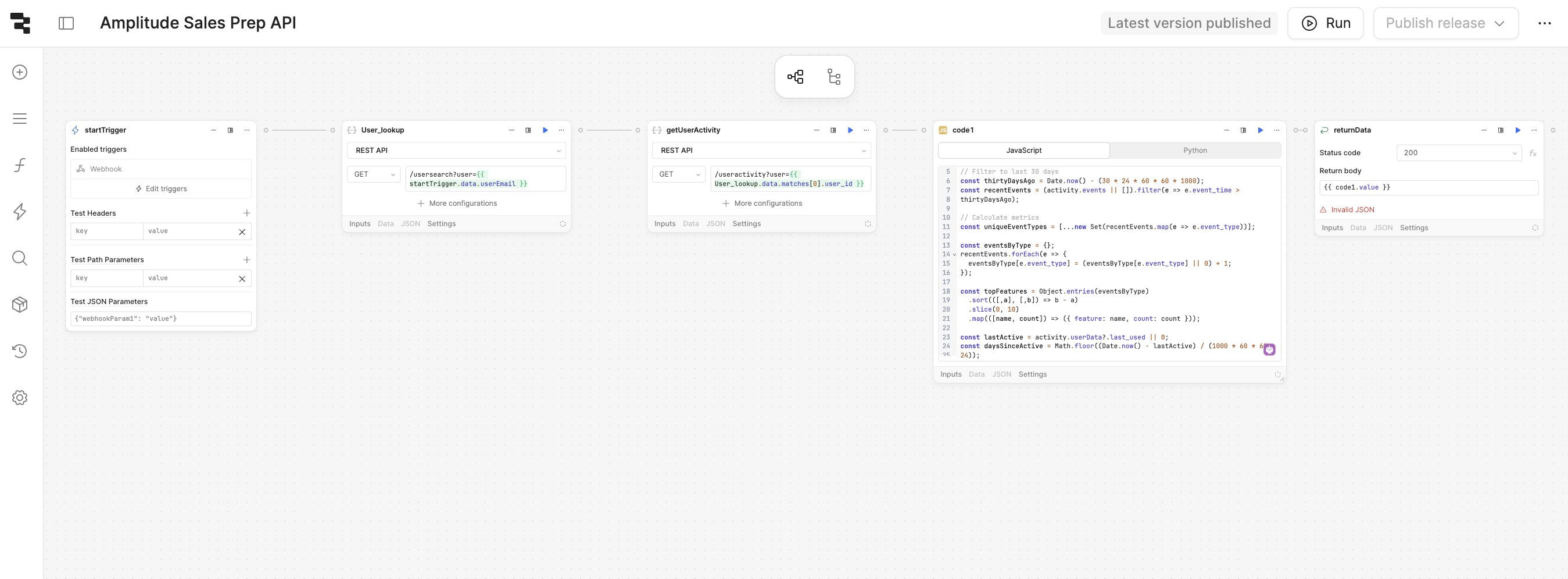
This automated workflow triggers 30 minutes before customer meetings, pulls the attendee's product usage data from Amplitude via Retool, analyzes it with AI, and delivers insights to the rep via Slack or CRM. Reps walk into calls knowing engagement levels, feature adoption gaps, and get three specific talking points.
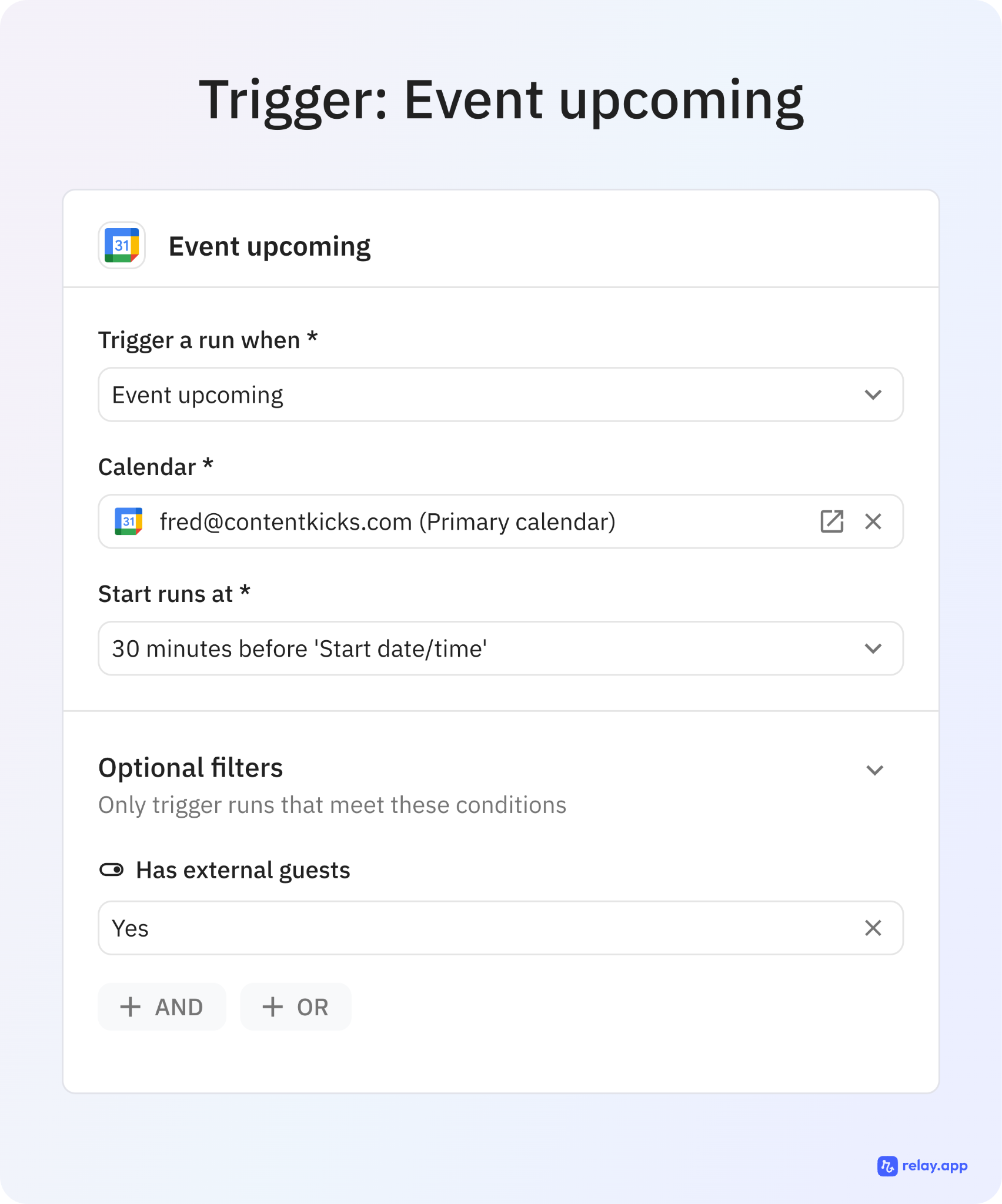
Trigger: 30 minutes before a calendar event starts
Then it:
Filters for external attendees - Identifies guests outside your email domain
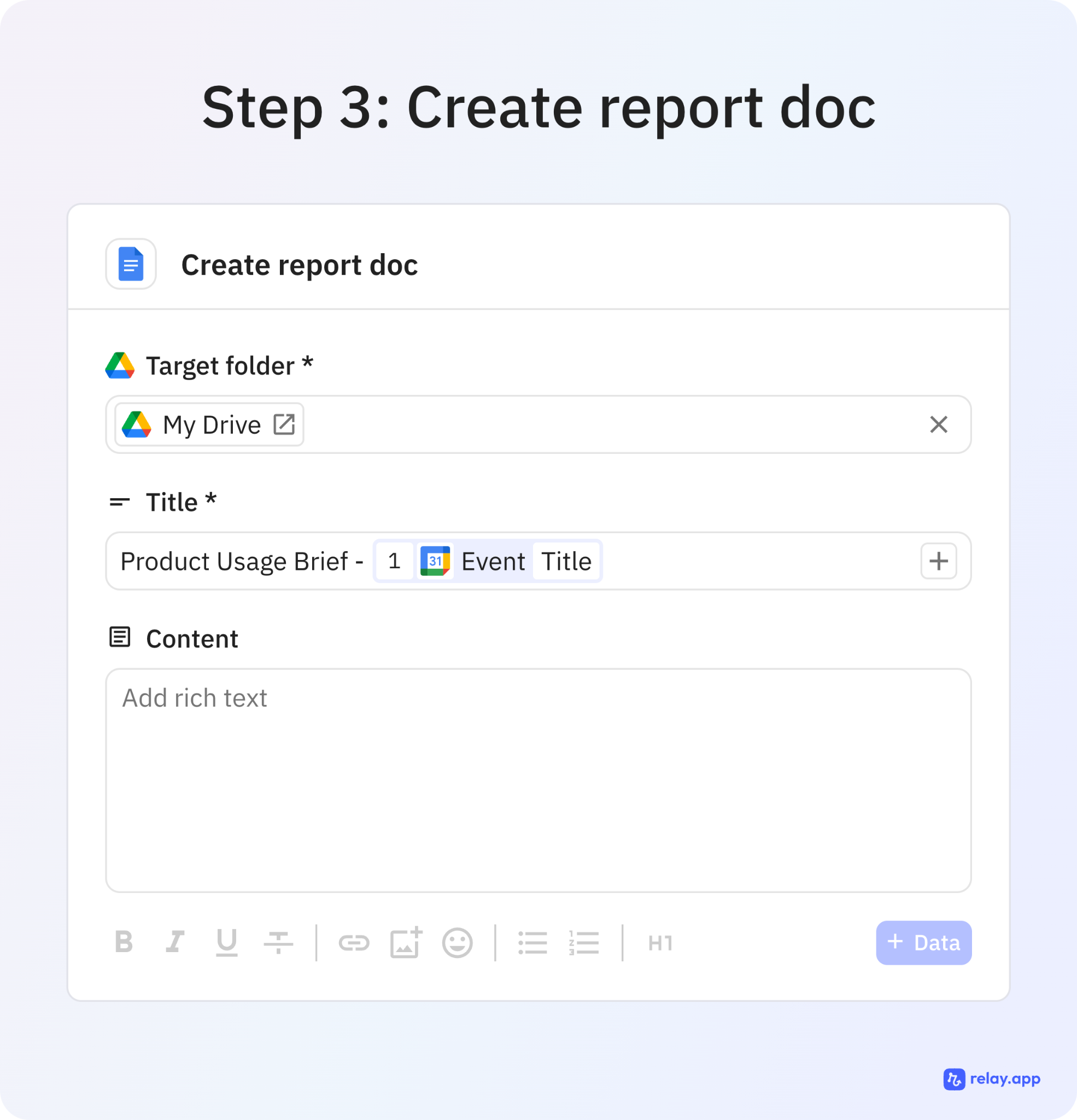
Creates a prep document - Generates a Google Doc for the meeting
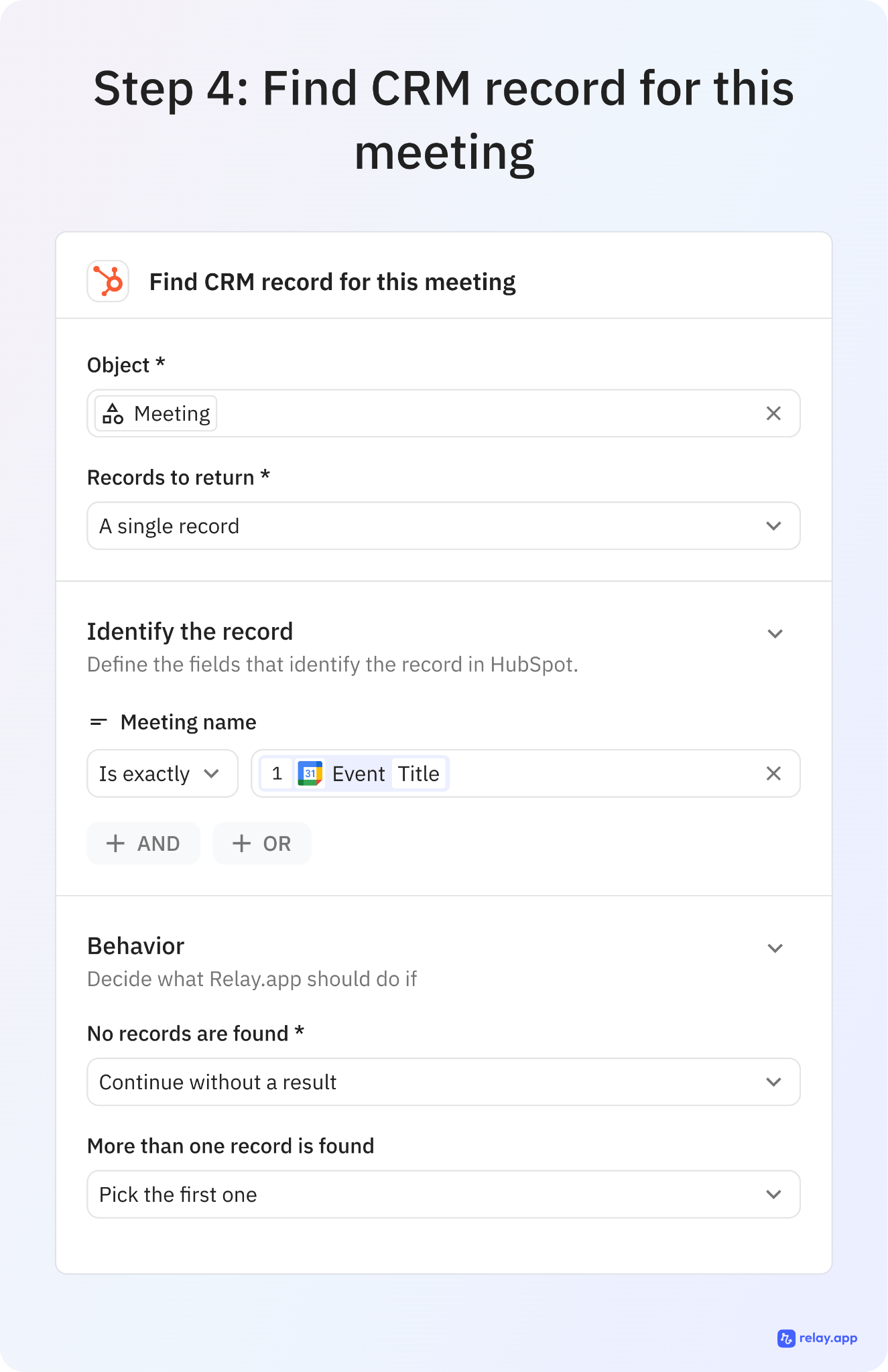
Looks up the meeting in your CRM - Finds the HubSpot record for context
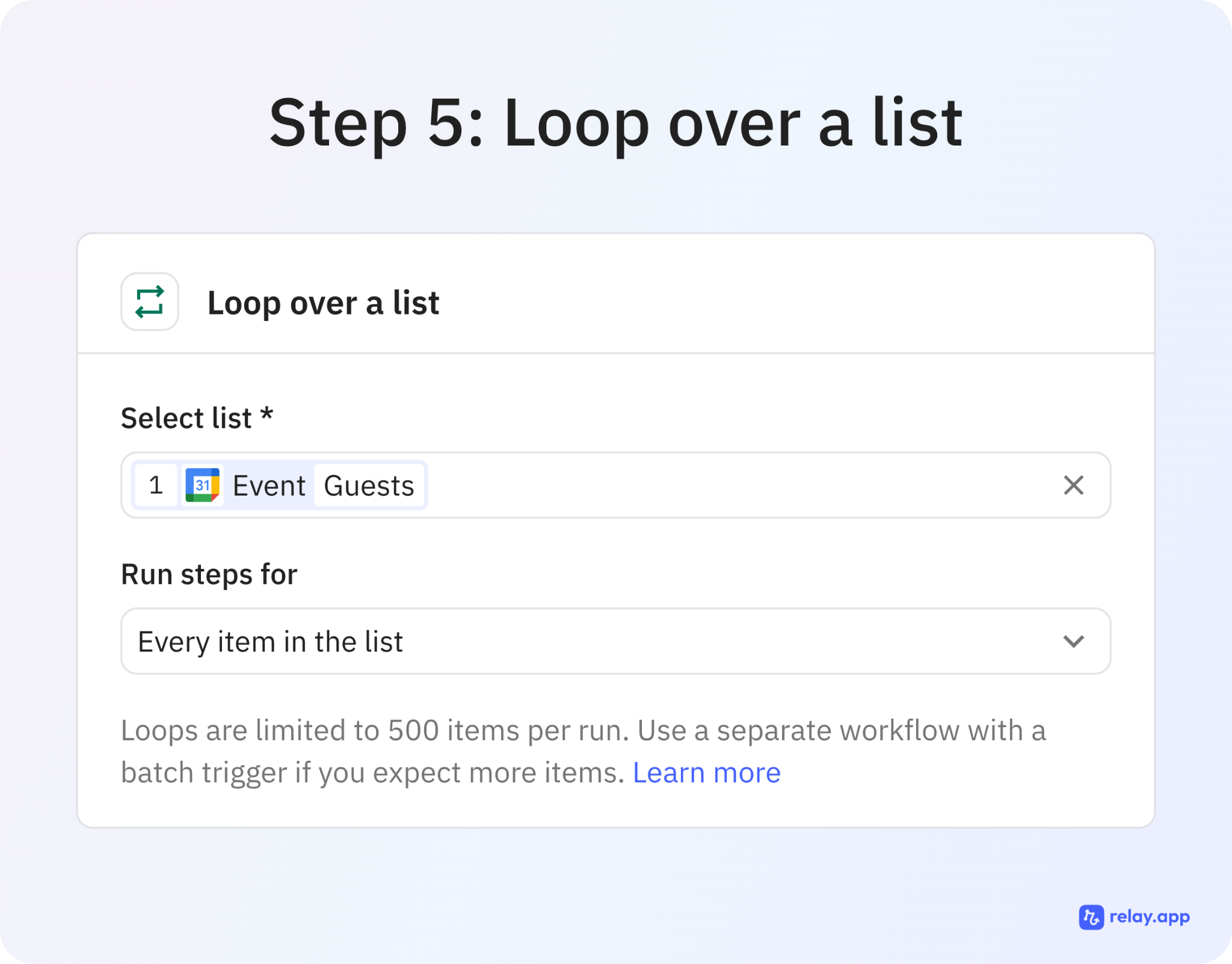
For each guest:
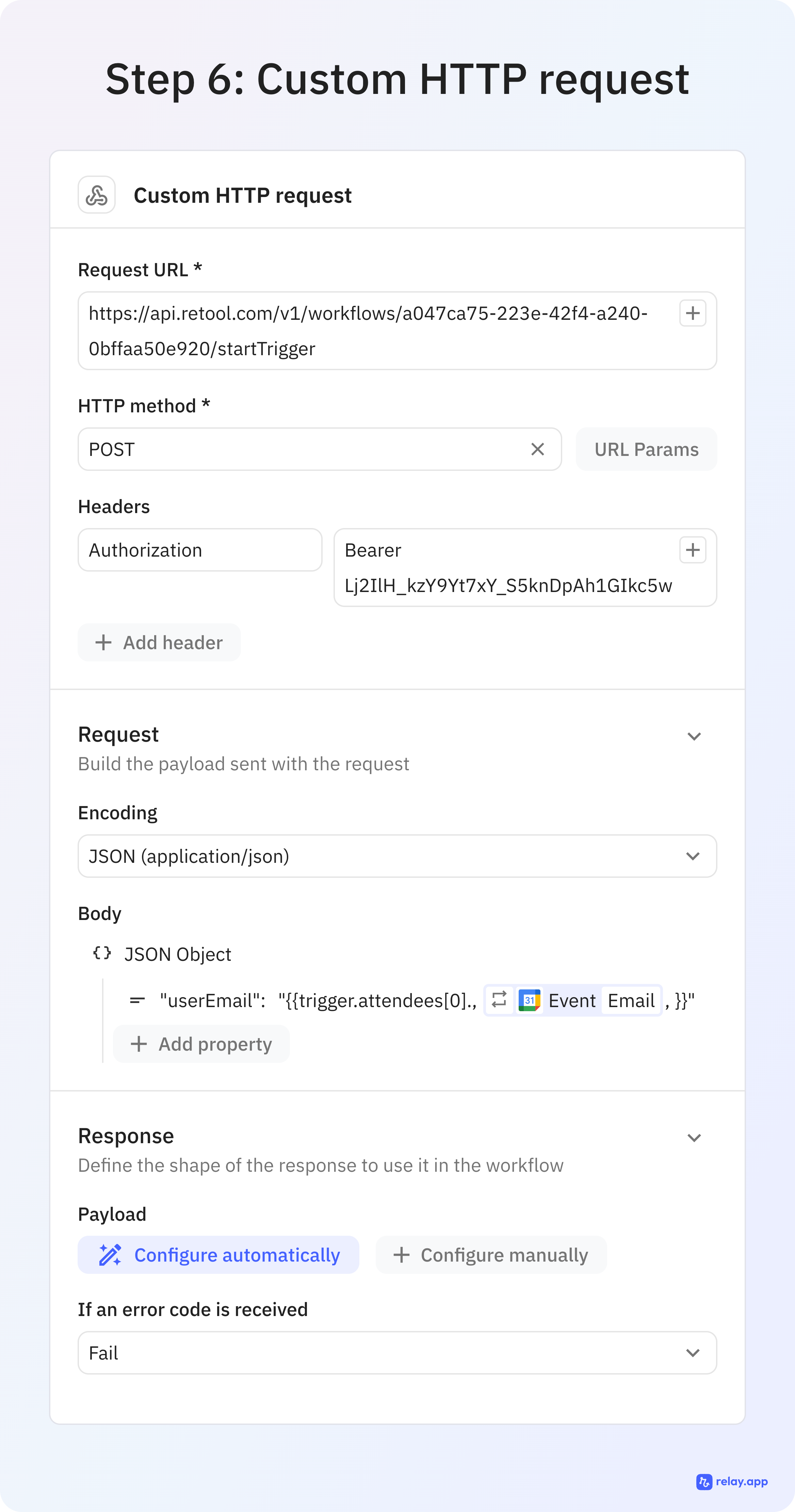
Step 6: Calls your Retool API to fetch their Amplitude product usage data (currently this will fail since you don't have real Amplitude data)
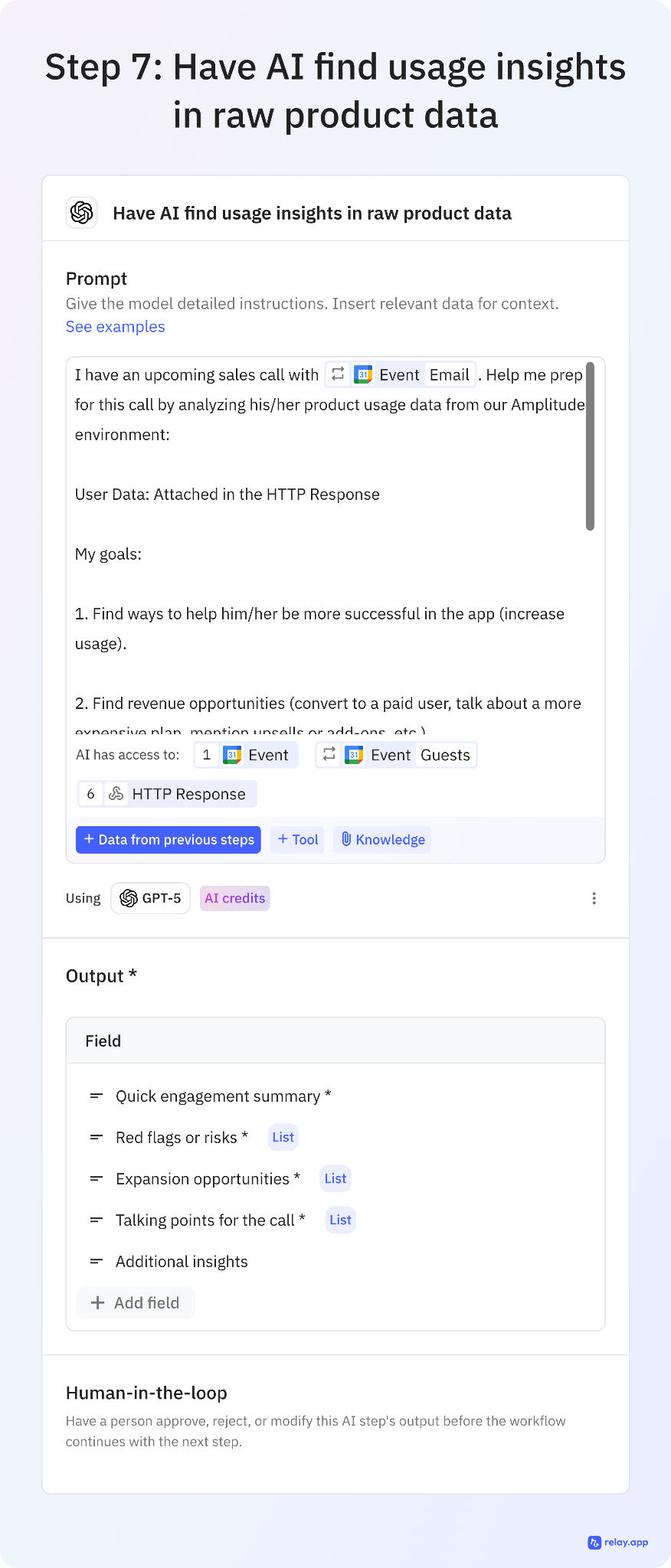
Step 7: Sends that usage data to AI to analyze and generate insights
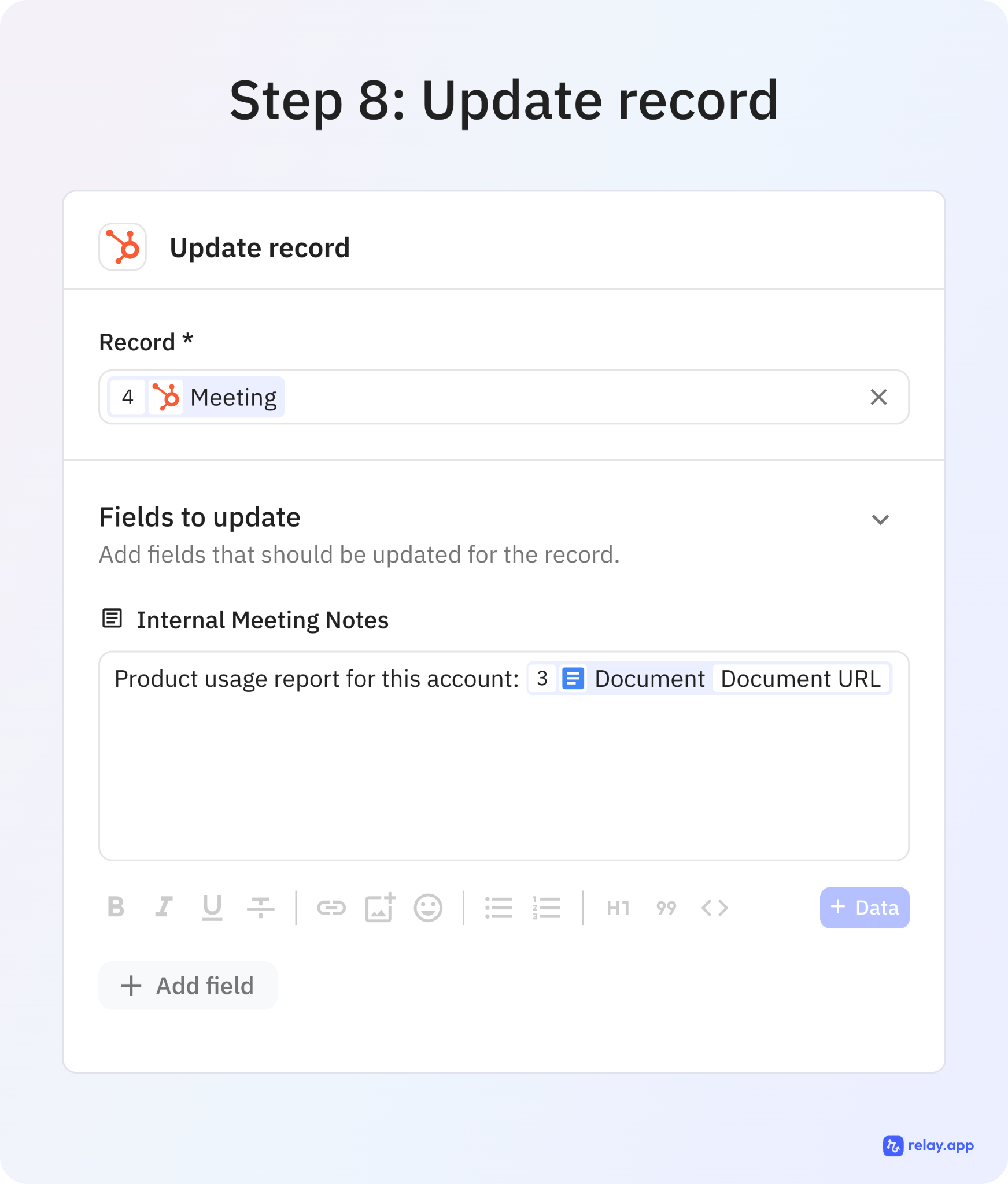
Updates the HubSpot meeting record - Adds the insights to your CRM
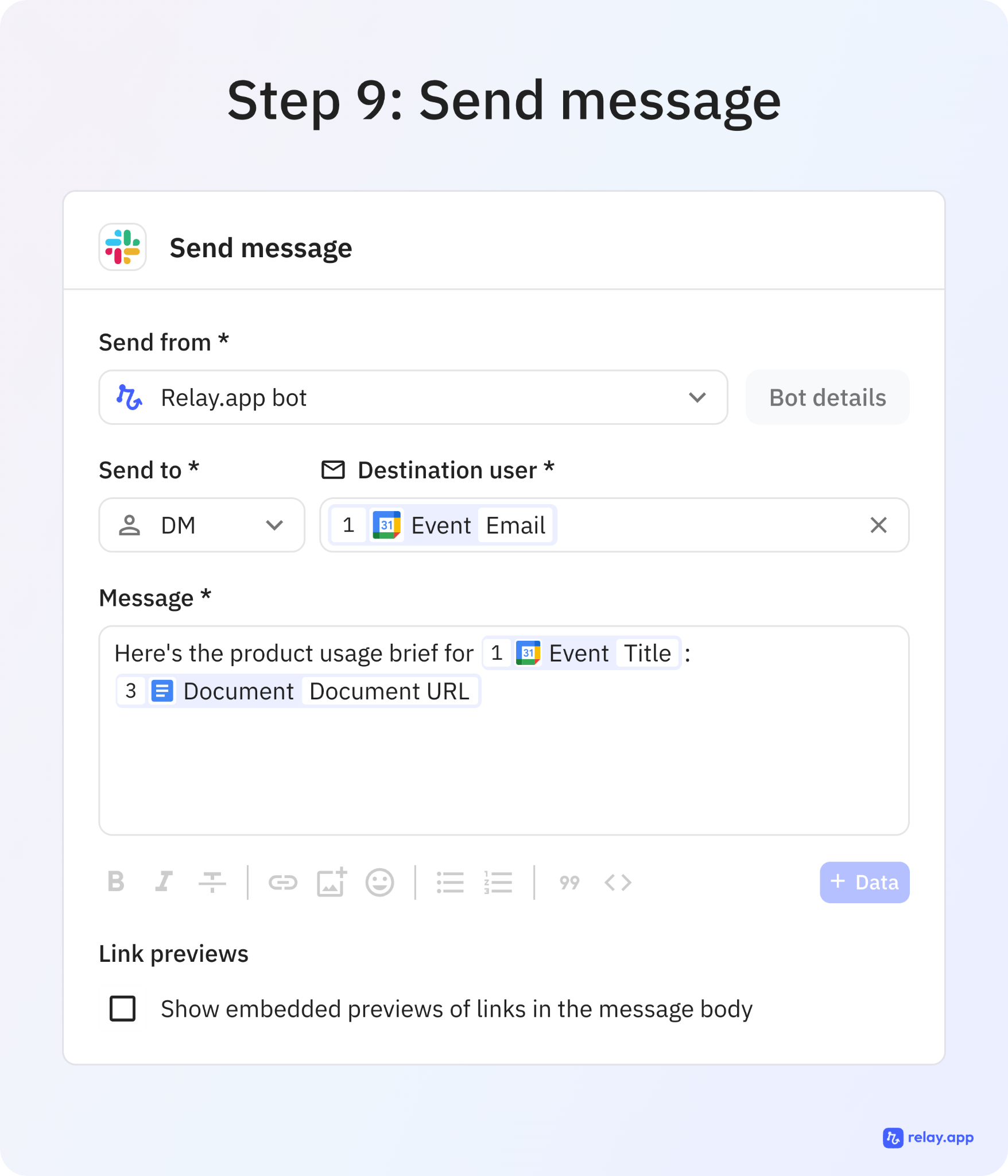
Sends you a Slack message - Delivers the analysis so you're prepped for the call
How to customize this to your org/workflow/tools/processes
Notion-Style Callout
💡 Need something more complex and customized to your flow & tools?
Let's talk (15 min).
Retool Workflow
Replace Amplitude with your analytics tool (Mixpanel, PostHog, Heap, etc.) - update API endpoints and authentication
Adjust the data filtering logic (currently 30 days) to match your needs
Modify the engagement thresholds (50+ events = high, 20+ = medium) based on your product usage patterns
Test the workflow returns the data granularity you need for sales conversations
Update company name extraction logic if you track organizations differently in your analytics tool
Relay Workflow - Calendar & Filtering
Change the calendar connection to your work calendar
Adjust trigger timing (currently 30 min before meetings)
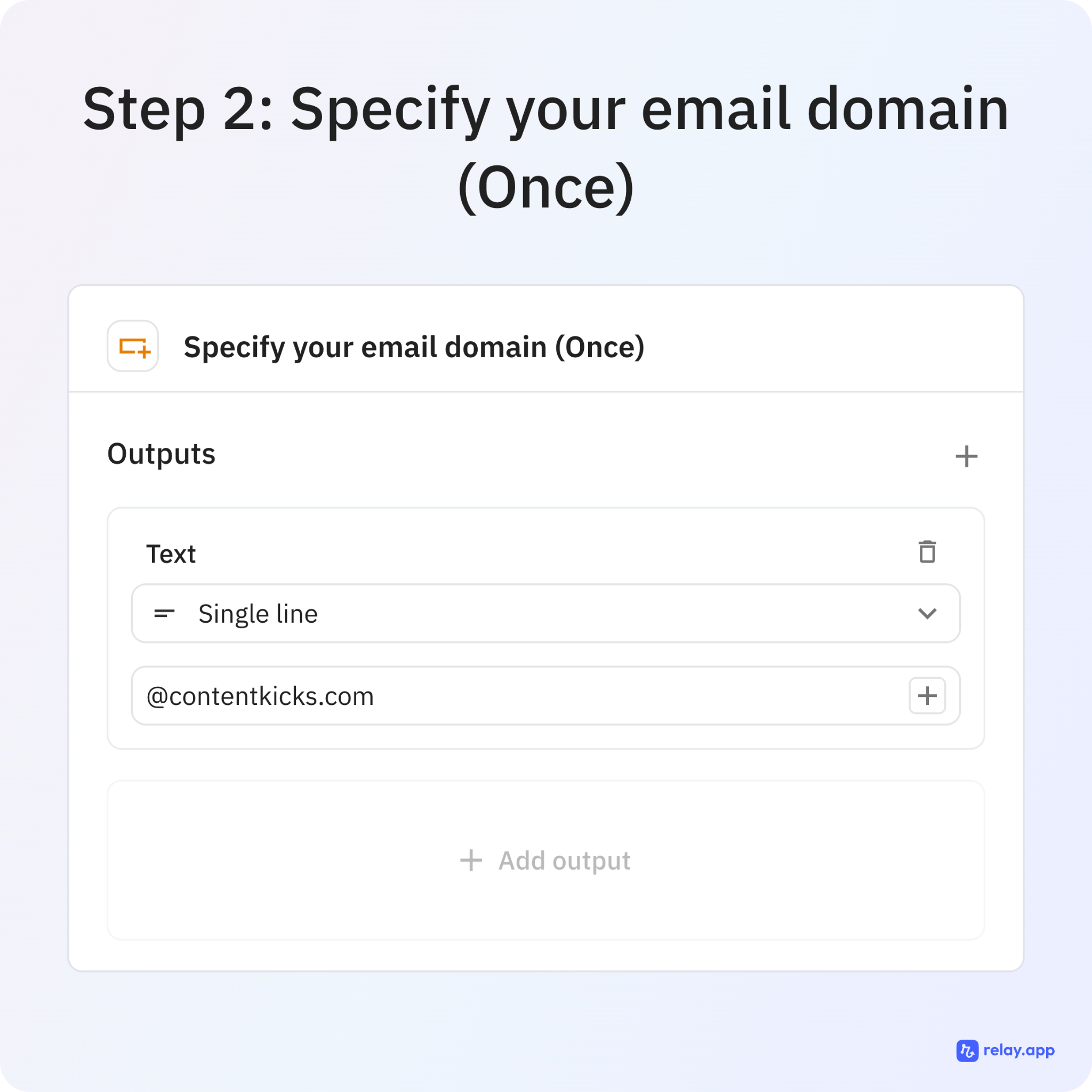
Update email domain filter from contentkicks.co to your company domain
Add additional filters for meeting types if needed (external only, tagged meetings, etc.)
Relay Workflow - CRM Integration
Replace HubSpot steps with your CRM (Salesforce, Pipedrive, etc.) or remove entirely
Adjust how meeting records are created/updated based on your CRM structure
Map custom fields if you want to store insights in specific CRM properties
Relay Workflow - AI Analysis
Customize the AI prompt based on what insights matter for your sales process
Choose your preferred AI provider (GPT-4, Claude, etc.)
Adjust the analysis depth based on meeting importance (enterprise vs SMB)
Relay Workflow - Notification & Delivery
Change Slack notification to email if you don't use Slack
Update the notification recipient/channel
Customize message format and what data points to highlight
Consider alternative delivery: append to support tool (Intercom, Zendesk), create task in project management tool, etc.
Testing Strategy
Start with mock data in Step 6 (add a "Custom code" step with a JS script that produces mock data mimicing what you have in your analytics tool) to test AI analysis and notifications
Test with a few real calendar events before going live
Verify the workflow only triggers for intended meeting types
Confirm data appears where you expect (CRM, Slack, etc.)
Steps and instructions
How to recreate the Retool workflow
Note: Ask Claude for help setting this up if you're not technical.
Step 1: Create a New Workflow
Go to Retool → Workflows → Create New → Blank Workflow
Name it "Amplitude Sales Prep API" (or similar)
Step 2: Configure the Webhook Trigger
The workflow starts with a webhook trigger by default
Click on it to view the webhook URL - save this for later
The webhook will receive JSON with userEmail (and optionally companyName)
Step 3: Add Amplitude Resource
Go to Resources → Create REST API resource
Base URL: https://amplitude.com/api/2
Authentication: Bearer Token
Token: Your Amplitude API token (from Amplitude → Settings → Projects → API Tokens)
Save the resource
Step 4: Add User Lookup Query
Click "+" to add a block → Resource Query
Select your Amplitude resource
Name it: User_lookup
Method: GET
Path: /usersearch
URL Parameters: Add parameter user = {{ startTrigger.data.userEmail }}
Step 5: Add User Activity Query
Add another Resource Query block
Select Amplitude resource
Name it: getUserActivity
Method: GET
Path: /useractivity
URL Parameters: Add parameter user = {{ User_lookup.data.matches[0].user_id }}
Replace with a real email from your Amplitude data
Click "Run Test"
Verify each block executes successfully and returns expected data
Step 9: Deploy
Click "Deploy" in the top right
Copy the webhook URL from the trigger settings
This URL is what you'll call from Relay or any other automation tool
The Relay workflow
Prompt (make this better by adding an example of the ideal output you want at the end of this prompt):
I have an upcoming sales call with <div>Email</div>. Help me prep for this call by analyzing his/her product usage data from our Amplitude environment:
User Data: Attached in the HTTP Response
My goals:
1. Find ways to help him/her be more successful in the app (increase usage).
2. Find revenue opportunities (convert to a paid user, talk about a more expensive plan, mention upsells or add-ons, etc.)